> For the complete documentation index, see [llms.txt](https://help.x1000.finance/llms.txt). Markdown versions of documentation pages are available by appending `.md` to page URLs; this page is available as [Markdown](https://help.x1000.finance/trading/x1000-trading-wallet.md).
# x1000 Trading Wallet
The x1000 Trading Wallet is your unique wallet version for trading on TON Blockchain. It's a non-custodial solution integrated seamlessly into the platform. This page covers wallet creation, data signing for smooth trades, and managing deposits and withdrawals.
## Wallet Creation
Your x1000 Trading Wallet is automatically generated the first time you connect a TON wallet to the platform. This dedicated wallet acts as your personal trading space.
* Fully non-custodial, with no access by the x1000 team.
* Unique address for each connected TON wallet.
## Data Signing
Before your first trade, x1000 prompts a time-limited data signature in your connected wallet app. This step streamlines the process.
* Enables one-click buys and sells, eliminating repeated approvals.
* Applies only to x1000 actions, without affecting other dApps.
{% hint style="info" %}
Not all TON wallets support this method — check compatible options on[ the Sign Up page](/start/sign-up.md).
{% endhint %}
## Deposits and Withdrawals
Manage funds easily in your x1000 Trading Wallet. Deposits accept TON directly or bridged assets from chains like BSC, Ethereum, Solana, Tron, Arbitrum, SUI, Base, and HyperEVM.
### Depositing Funds
#### **TON Deposits**
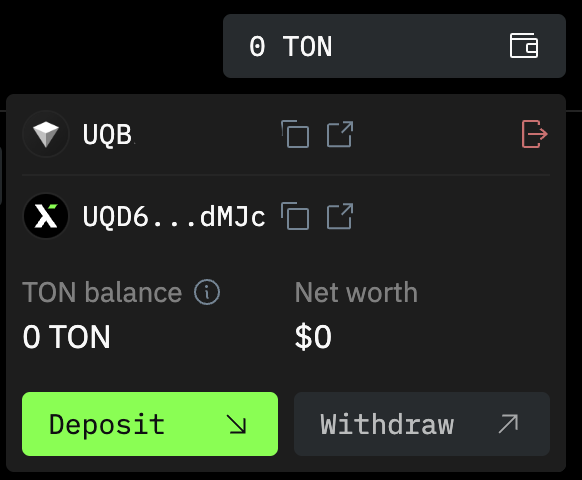
1. Click your wallet logo in the top-right corner.
2. Select Deposit.
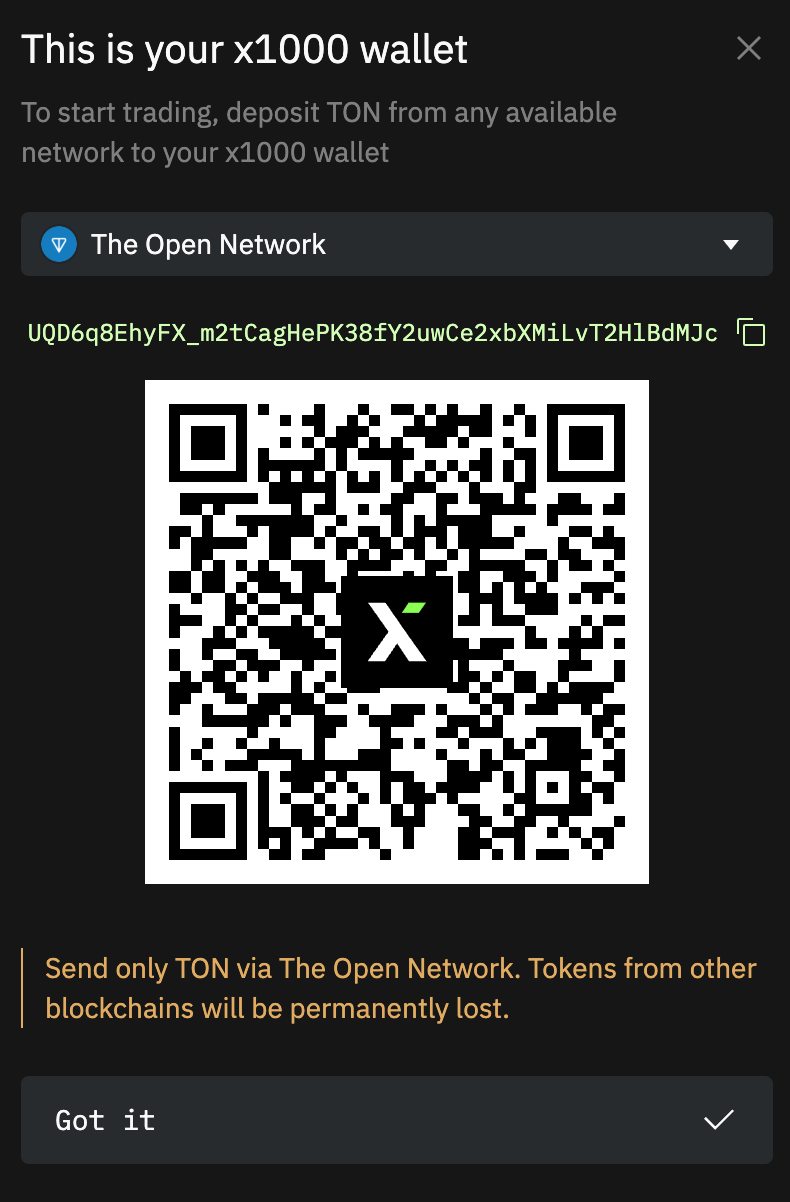
3. Copy your TON address and send funds from an external source.
4. Await network confirmation for balance update.
#### **Deposits from Other Blockchains**
1. Click your wallet logo in the top-right corner.
2. Select Deposit.
3. Use the dropdown to pick one of the 9 supported chains.
4. Choose the token and specify the amount.
5. Click Deposit, send to the provided address, and wait for confirmation.
6. Tokens auto-convert to TON and appear in your balance.
{% hint style="info" %}
Cross-chain deposits are powered by Houdini Bridge. For assistance, visit [Houdini Telegram Support Bot](https://t.me/HoudiniSwapSupport_bot).
{% endhint %}
### Withdrawing Funds
1. Click your wallet logo in the top-right corner.
2. Select Withdraw.
3. Send to your connected wallet or input a custom TON address.
4. Enter the amount and click Withdraw.